
Introduction to Computer Science
Constants, Variables and Assignments

MINDS ON
Consider many of the computer programs and apps that you use on a daily basis. Do you interact with these pieces of software? Do you enter information and then have the software return something back to you? Or, do these pieces of software receive information from another source, and then output that information to you?

What is happening in these situations is a great example of the input-processing-output model of computer software.
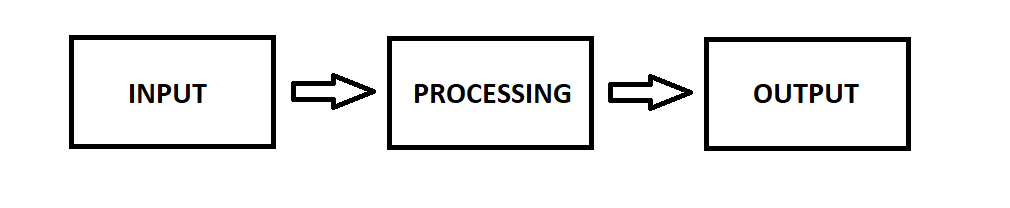
Information or data is entered into the program (this might be from a keyboard, mouse, touch screen, or data file, from your voice or webcam, or from somewhere else).
The information is then processed (maybe calculations are made, or maybe the data is changed, formatted, or altered in some way).
That information, or the new information that has been processed, is then output to the user or to an output file, or is sent somewhere else, like to a printer or attached to an email.
This is all very cool, but if you consider the programs we’ve written already, they haven’t had much input or processing. So, let’s start learning about how to implement input and processing in our Java programs!
Studying Computer Programming and Computer Science
There are a lot of ways to learn about computer programming and computer science.
You can start programming with only a problem to solve and no hints or clues. You can be given a problem that has already been broken down into steps, and you solve each step, one at a time. You can be given code to copy, line by line, and then try to change things as you go to learn how it works. You can also start with a working program, and then have to change parts of it to solve a different problem.
In this course, we are going to use a variety of methods to help you learn about computer programming and computer science. Just make sure you pay close attention to the details and you review any and all information that you don’t understand.

Many of the concepts build upon each other, so these first few lessons are important and will help you build a solid foundation of knowledge so that you can build some awesome stuff!

ACTION
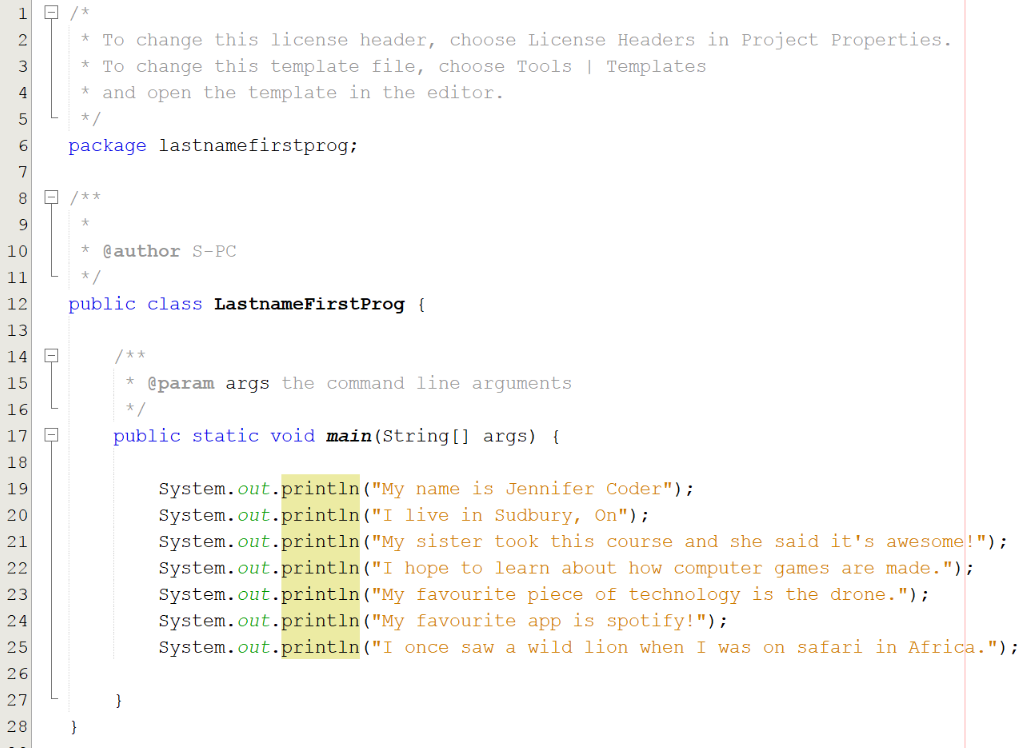
So far, the programs that you have written have simply output information to the screen. The following is a good example. The program includes seven output statements that print a sentence to the output console:
It is now time to start creating programs that do some calculations (or processing) and then output the results to the screen.
Did You Know?
A great way to learn how to do computer programming is to see a completed program and then work backwards through the code, analyzing each line. The following programs will show you lines of code that you haven’t used before, but by seeing them in a completed program it will help you understand their use. The hope is that this will allow you to learn the concepts at a quicker pace so you can start writing some awesome code!
As you take a look at the examples, it’s important for you to slow down and really understand what’s happening at each step. If you rush through, you will miss important information and you might struggle when it’s time to write your own programs.
The program below is a program that uses a computer programming concept called variables to store the length and width of a rectangle. The program then calculates the area of the rectangle (which is also stored in a variable) and then it is output to the screen. Roll over the various parts of the program to get an idea of what each line of code is doing. You will then go over some of the terms in a bit more detail.
prog1
The interactive above contained a lot of new terminology like variable, int, declared and initialized. Let’s take a closer look at what all of this means.
Variables
A variable is a named location in the computer’s memory. It’s like a storage box for information that is going to be needed by the program. Similar to how in math, x = 7, in computer science we use variables to hold values and other objects.
Declaring a variable = making it exist
When you declare a variable it is sort of like attaching a spot in the computer’s memory to the computer program. Variables are referred to as “named” because the spot will be referenced in the program by using it’s name.
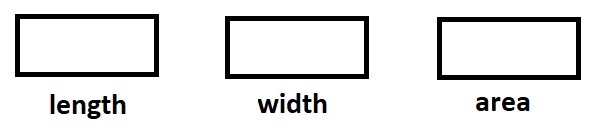
So lines 7, 8 and 9 in the above program make three storage locations exist:
Initializing a variable = giving the variable it’s first value
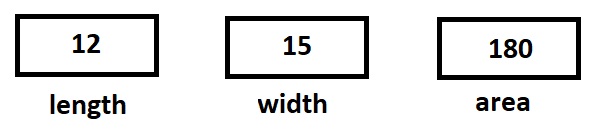
Just because a variable has been declared does not mean that it has a value yet (notice the locations above are empty). We need to initialize a variable in order to have it equal something. Lines 11 and 12 in the program above initialize the length and area variables, while line 14 initializes the area variable:
So what does "int" mean?
You may have noticed that the variables above were declared by typing “int” then the variable name.
The “int” is telling the computer what variable type will be stored. In this program, you needed to store values that were numbers without decimal places, so we asked to use an integer or “int”.
The table below outlines some of the other variable types you will be using:
| Variable Type | Description |
|---|---|
| int |
Integer Stores positive or negative numbers without decimal places. Stores values between -2,147,438,648 and 2,147,483,647. Takes up 32 bits of memory.
|
| double |
Double Stores positive or negative values with decimal places. Can store immensely huge numbers. Can store values accurately up to 15 decimal places. Takes up 64 bits of memory. Ex: 12.5, -543.7645, 0, 5465.876, -8722.987999 |
| char |
Character Stores a single character. Takes up 16 bits of memory. Is defined using single quotation marks. Ex: 'A', 'v', 'X', 'd', '-', '%', '?', '.'. Note that chars are defined in between single quotes. |
| boolean |
Boolean Stores either true or false. Takes up one single bit of memory. Ex: true, false… that’s it; there are only those two possible values. |
| String |
String Stores a series of characters, words and sentences. Takes up different amounts of memory depending on the size of the string. Defined using double quotation marks. Technically this isn't a variable type, but it sort of is, so we will discuss it here. Note that it starts with a capital letter. Ex: “Eric”, “Shairose Holborn”, “Hello there”, “Computer programming is fun!”, “10432 McLeod Street”, “K3N 4H9”. |
The following program uses variables of type double in order to calculate a field goal percentage for a basketball player. (Field goal percentage is calculated by dividing the number of shots made by the number of shots taken). Roll over each of the line numbers to read about each one:
prog2
Arithmetic Operators
The program above involves dividing one variable by another. This is done using the “/” character, which in Java means division.
There are a number of other arithmetic operators that are important for you to learn:
| Java arithmetic operator | Operation | Example |
|---|---|---|
|
|
|
|
|
|
|
|
|
|
|
|
|
|
|
|
|
|
|
|
 Questions
Read through the programming code for the following programs. What would be output to the screen after each program is run?
-
int num1 = 5;
int num2 = 7;
int answer;
answer = num1 + num2;
System.out.println (answer);
AnswerThis program will output the value “12”.
-
int number1 = 25;
int number2 = 11;
int answer;
answer = number1 - number2;
System.out.println (answer);
AnswerThis program will output the value “14”.
-
int val1 = 5;
int answer;
answer = val1 * 5;
answer = answer - 10;
System.out.println (answer);
AnswerThis program will output the value “15”. Answer equals 25, but then we subtract 10 from 25 so answer is equal to 15 in the end.
-
double value1 = 50;
double value2 = 5;
double answer;
answer = value1 / value2;
System.out.println (answer);
AnswerThis program outputs the value “10.0”. Notice that doubles are used for all three variables. This is a good idea when you’re using division, because you may end up with a decimal number.
-
int value1 = 31;
int value2 = 54;
int answer1;
int answer2;
answer1 = value1 % 2;
answer2 = value2 % 2;
System.out.println (answer1);
System.out.println (answer2);
AnswerThis program outputs two values: the value “1” and the value “2”. Notice how answer 1 stores the result of 31 % 2 and answer 2 stores the result of 54 % 2.
This is actually a very cool way that computer scientists can figure out if a variable value is odd or even. They use modulus 2. If the result is 0 then it is even; if the result is 1 then it is odd.Don’t believe me?
Try 98,345,645 % 2. The result will be 1.
But the result of 98,345,646 % 2 will be 0.
Did You Know?
Notice how the variables in the short programs above can actually be declared and initialized on the same line.
Instead of writing these four lines of code:
int value1;
int value2;
value1 = 31;
value2 = 54;
you can just write these two lines of code:
int value1 = 31;
int value2 = 54;
Cool, eh?
This saves the programmer a bit of time if he or she knows the value of the variable at the start.
The following program uses several different types of variables to store information. Roll over the various parts of the program to get an idea of what each line of code is doing:
prog3
Variable Names
You may have noticed in the programs above that the programmer gets to select the variable name when they declare the variable. The variable name should always describe what the variable holds, and the programmer has to make sure that the variable name is not a reserved word in the programming language. A reserved word is a word that already has a function in the Java programming language (i.e.,“int” and “double” are both reserved words).
For example:
- Calling a variable “x” is not good practice because it doesn’t describe what the variable holds.
- Calling a variable “public” is not a good idea either. In fact, this won’t work because “public” is a reserved word in Java that is needed for programming instructions.
Consider the variable names below. What makes each one a poor choice?
Questions
- aNumber
AnswerThis should be a bit more descriptive.
- stuff
AnswerThis should be a bit more descriptive.
- class
AnswerThis is reserved word in Java
- data
AnswerThis should be a bit more descriptive.
- someInformationAboutTheUser
AnswerThis is WAY too long.
- package
AnswerThis is reserved word in Java.
 Variables and Variable Types
Your task is to create a program similar to the one above, that includes four or more variables. The variables you include should all be of different types.
You should include each of the following:
- A variable of type int
- A variable of type double
- A variable of type String
- A variable of type boolean
Your program should declare these variables, initialize these variables, and then output their values to the screen.
Make sure that you select information that is appropriate for each data type:
- What type of data would be appropriate for an int variable (can be negative or positive, but no decimals)?
- What type of data would be appropriate for a double variable (can hold decimals)?
- What type of data would be appropriate for a String data type (can hold letters, punctuation, words and other symbols)?
- What type of data would be appropriate for a boolean data type (can hold true or false)?
User Input
So far the programs that you have written have output data to the screen, but you haven’t read any input in from the user. In Java, you can ask the user a question and he or she can type in data that the program will use.
Obtaining data from the screen is a little tricky, because you need to import some code that has already been written for you in what is called a library. This code is called the Scanner class. We will talk later about classes in Java, but for now, let’s just say that it’s a bunch of pre-written commands that you can use in your programs without needing to know exactly how they work.
Reading in Integers
The program below asks the user to enter two integers. The sum of the two numbers is then calculated and output:
prog4
Reading in Doubles
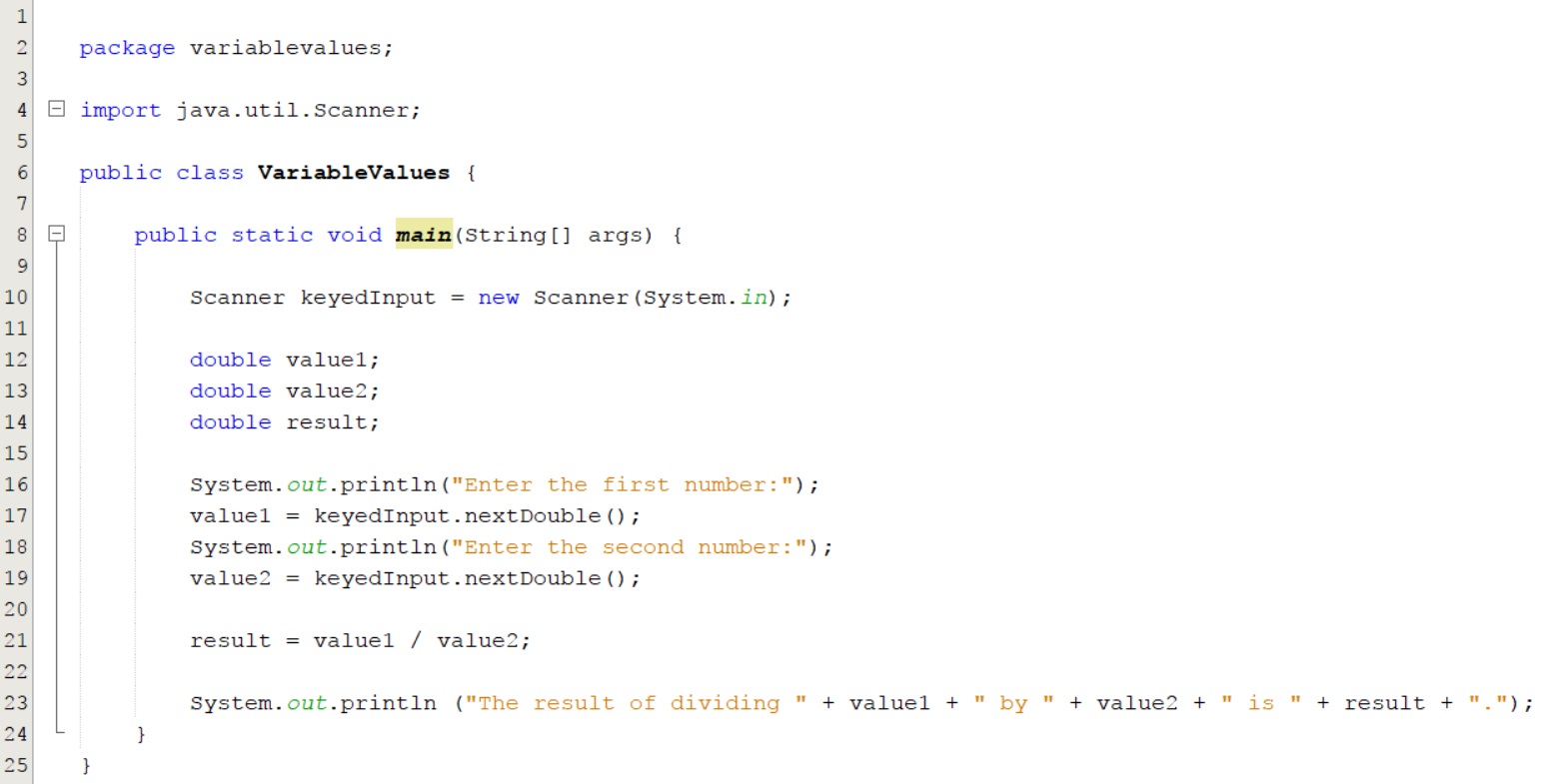
The program below asks the user to enter two doubles. The first double is then divided by the second double and the result is output:
Reading in Strings
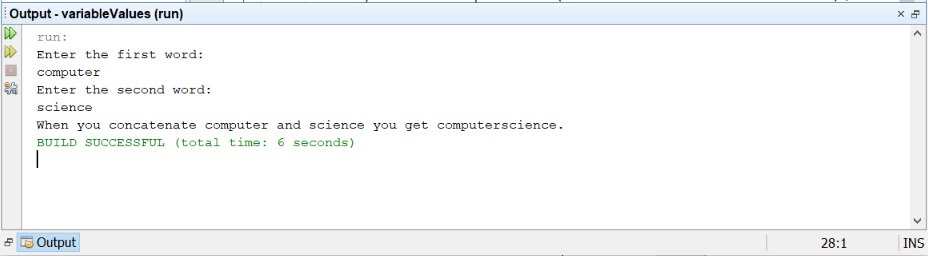
The program below asks the user to enter two strings. The strings are then concatenated, which is a cool word that means “joined together”. You can “join” two strings together simply by using the addition operator:

- Use the import command at the top of your program in order to access the Scanner class or library of commands.
import java.util.Scanner;
- Instantiate the scanner at the start of the main program. Instantiate is a crazy word, but it really just means “provide space in memory for a Scanner object to exist.” Yikes!
Scanner keyedInput = new Scanner(System.in);
- Read in the data using one of the following commands:
keyedInput.nextLine(); for strings
or
keyedInput.nextDouble(); for doubles
or
keyedInput.nextInt(); for integers.
Did You Know?
Throughout this course you may be asked to “prompt the user” for some information. This means that your program should ask the user clearly for some information, and then read it into the program.
Example: If you are asked to “prompt the user for their age,” then your program should have an output statement that reads something like:
“Hello, please enter your age:”
The program should then be able to read the value entered into an integer variable. The three programs above prompt the user to enter integers, doubles and Strings respectively.
The following video demonstrates how to use variables, using the IDE and the input-processing-output model to determine the area of a triangle:
Solving Math Problems
The programs and video above demonstrate how to create programs that ask the user for input, perform some processing on the data, and then output new data processed by the program.
Your task now is to create two programs that do exactly that.
The two programs that you write should:
- Ask the user to enter in some values
- Use the values to solve some type of mathematical problem
- Output the solution to the problem
- Include user-friendly prompts and instructions
- Include appropriate variable types
- Include appropriate variable names
- Run without any errors
Some mathematical problems you might want to solve include:
- Determine the area of a rectangle using the length and width entered by the user.
- Determine the area of a circle using the diameter entered by the user (you can use the value 3.14 for pi).
- Determine the volume of a pyramid using the length, width and height entered by the user.
- Determine the speed of an object using the time and distance entered by the user.
If you are not sure what is expected, take another look at the video directly above. The video shows a programmer creating a program that determines the volume of cylinder.

CONSOLIDATION
Constants
You can think of a constant as you would a variable, except there is one major difference. The value of a variable might change as the program is run but…
the value of a constant stays the same.
It is good practice to use constants in your program when you know a variable value won’t change throughout the program. It is also smart to use a constant when you are continuously using a given value. Rather than always typing in the value numerically in your code, you should declare a constant.
In Java, constants are:
- Declared and initialized on the same line
- Preceded by the reserved word “final”
- Named using capital letters
Below you will find some examples of when it would be wise to use a constant. You can see the exact Java code to declare and initialize each one:
- Tax rates (i.e.: 13% in Ontario)
final double TAX_RATE = 0.13;
- Dates from the past
final int CONFEDERATION = 1867;
- The prices of things (e.g.: A t-shirt costs $14.99)
final double TSHIRT = 14.99;
final double LARGE_PIZZA = 20.75;
- Longer names
final String COMPANY = “Evi’s CompuTech Inc”;
- Provinces, States, Territories, Countries and Cities
- final String ONTARIO = “Ontario”;
- final String CANADA = “Canada”;
Using constants can make your code more readable, because instead of numbers and data being repeated several times in your code, the constant name is used. It also makes it easier to understand, and easier to change, if necessary.
The following is another great reason why you should use constants.
Imagine that you are a computer programmer and you just spent a year developing some amazing tax software for the province of Ontario. In the software, whenever you had to multiply or divide by the tax rate you used the value 0.13 in the equation. Your program works great, hooray!!!
Now imagine that the Ontario government decides to increase the tax rate to 15%. What will you do? You will have to look through your hundreds of lines of code and change every occurrence of 0.13 to 0.15!
But… if you had used TAX_RATE as a constant and the government changed the rate, you would only have to change the rate on one line of code, where the constant was initialized and declared!
First Few Programs
Create the following three programs. Each program should include one constant. If you can figure out a way to round numbers or display them with only two decimal places, then go ahead and do so. However, don’t worry too much about that yet.
Program 1: Water and Computer Manufacturing
Did you know that it takes 1.5 tons of water to manufacture one computer and monitor combo? Create a computer program that prompts the user to enter the number of computer/monitor combos they own. The program should then calculate and output the total number of tons of water used to manufacture them.
Program 2: Shopping!
This program should prompt the user for the number of USB storage devices they would like to purchase, the number of keyboards they would like to purchase, and the number of computer mice they would like to purchase. The program should then calculate and output a subtotal for their order, the amount of taxes, and grand total based on the following prices:
- USB storage device: $19.99
- Keyboard: $49.99
- Computer Mouse: $25.99
Hint: There is a video in this activity that takes you through the creation of a program very similar to this.
Program 3: Income Tax
This program should prompt the user to enter in their salary. The program will then determine the amount of income tax that they owe. The income tax amount should be determined using data from the Government of Canada tax brackets and rates.
Make sure that your programs:
- Ask the user to enter in some values
- Use the values to solve the problem given
- Use constants for any known values that will not change
- Output the solution to the problem
- Include user-friendly prompts and instructions
- Include appropriate variable types
- Include appropriate variable names
- Run without any errors
The user input and output generated in the programs above all used something called the console. The console is the small window that opens up when you run your program. It allows us to output things quickly to the screen and it allows you to read in data quickly from the keyboard.
The problem with the console is that it is a bit boring. It is text-based, and doesn’t allow the programmer to include graphics, images or other ways of getting user input (like dropboxes, text fields, radio buttons, etc.).
The console is an awesome way to test code quickly and to output the values of variables so that the programmer can better understand their program. Often programmers will use the console during the development phase of the project to make sure everything is working correctly, and then they will build a graphical user interface once they know that the calculations and background code is effective.
This is what you will be doing in the next few activities.
 Learning Goals and Success Criteria
 Learning Skills and Work Habits